
Building a Smarter Workspace for Productivity and Comfort
Discover how thoughtful workspace design, ergonomic habits, and practical technology can help create a more organized, comfortable, and productive environment for everyday work.
Why Your Workspace Matters
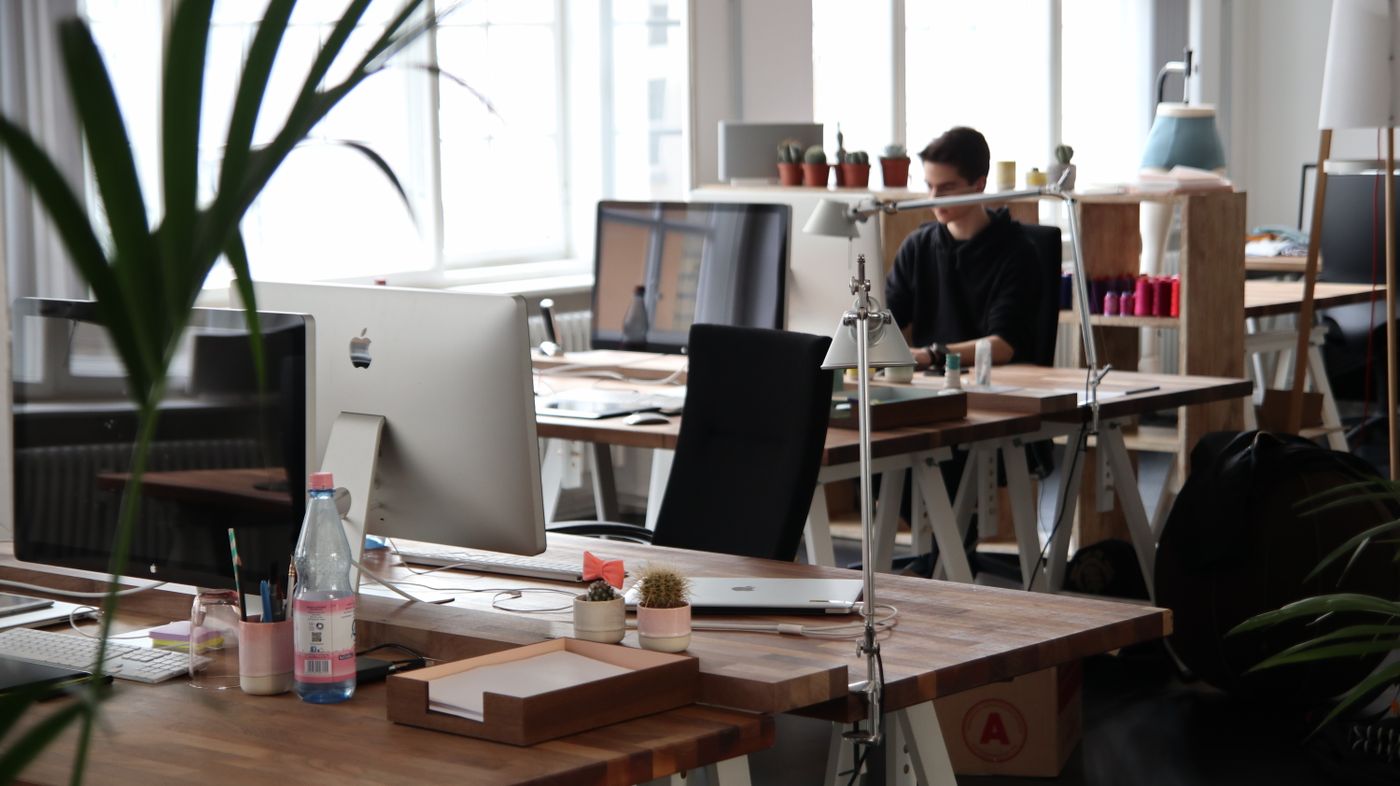
Whether you work from home, study online, manage a small business, or divide your time between different locations, your surroundings can influence how easily you concentrate and complete everyday tasks.
A workspace that feels crowded, poorly lit, or difficult to navigate may introduce unnecessary distractions. In contrast, a thoughtfully arranged desk can make frequently used tools easier to reach, improve visual comfort, and support smoother transitions between activities.
Creating a smarter workspace does not require an expensive renovation or an entirely new collection of equipment. Small improvements in screen positioning, lighting, organization, connectivity, and work habits can make a meaningful difference.
The goal is to create a space that suits your individual needs, whether that means a dedicated home office, a compact desk in a shared room, or a flexible setup that changes throughout the day.
Arrange your environment to support comfortable positioning and movement.
Keep useful tools accessible and reduce unnecessary clutter.
Choose technology that simplifies everyday tasks and connections.
Four Pillars of a Smarter Workspace
The most effective setups balance physical comfort, practical technology, visual simplicity, and flexible routines.
Ergonomic Comfort
Position seating, screens, and input devices to support comfortable work and regular changes in posture.
Reliable Connectivity
Use compatible hubs, adapters, chargers, and wireless accessories to reduce friction between devices.
Intentional Lighting
Combine available daylight and adjustable lighting to improve visibility and reduce distracting reflections.
Thoughtful Organization
Give essential items predictable places and maintain clear surfaces for the work you actually do.
Design Around the Way You Work
Ergonomics is about fitting a workspace to the person using it. Instead of forcing yourself into one fixed posture, aim for an arrangement that supports comfortable positioning and allows movement throughout the day.
The ideal setup varies with body dimensions, tasks, furniture, and personal needs, but several general principles can help.
Position the Screen Comfortably
Place your monitor or laptop screen at a comfortable viewing distance, with the top of the display approximately at or slightly below eye level when appropriate.
Support Your Arms and Wrists
Keep keyboards and pointing devices close enough to avoid unnecessary reaching, with shoulders relaxed and wrists in comfortable positions.
Adjust Seating and Desk Height
Choose a position that provides suitable support and allows feet to rest comfortably on the floor or a footrest.
Change Position Regularly
Break up prolonged sitting with comfortable movement, posture changes, and brief pauses when your work allows.

Choose Accessories That Simplify Your Setup
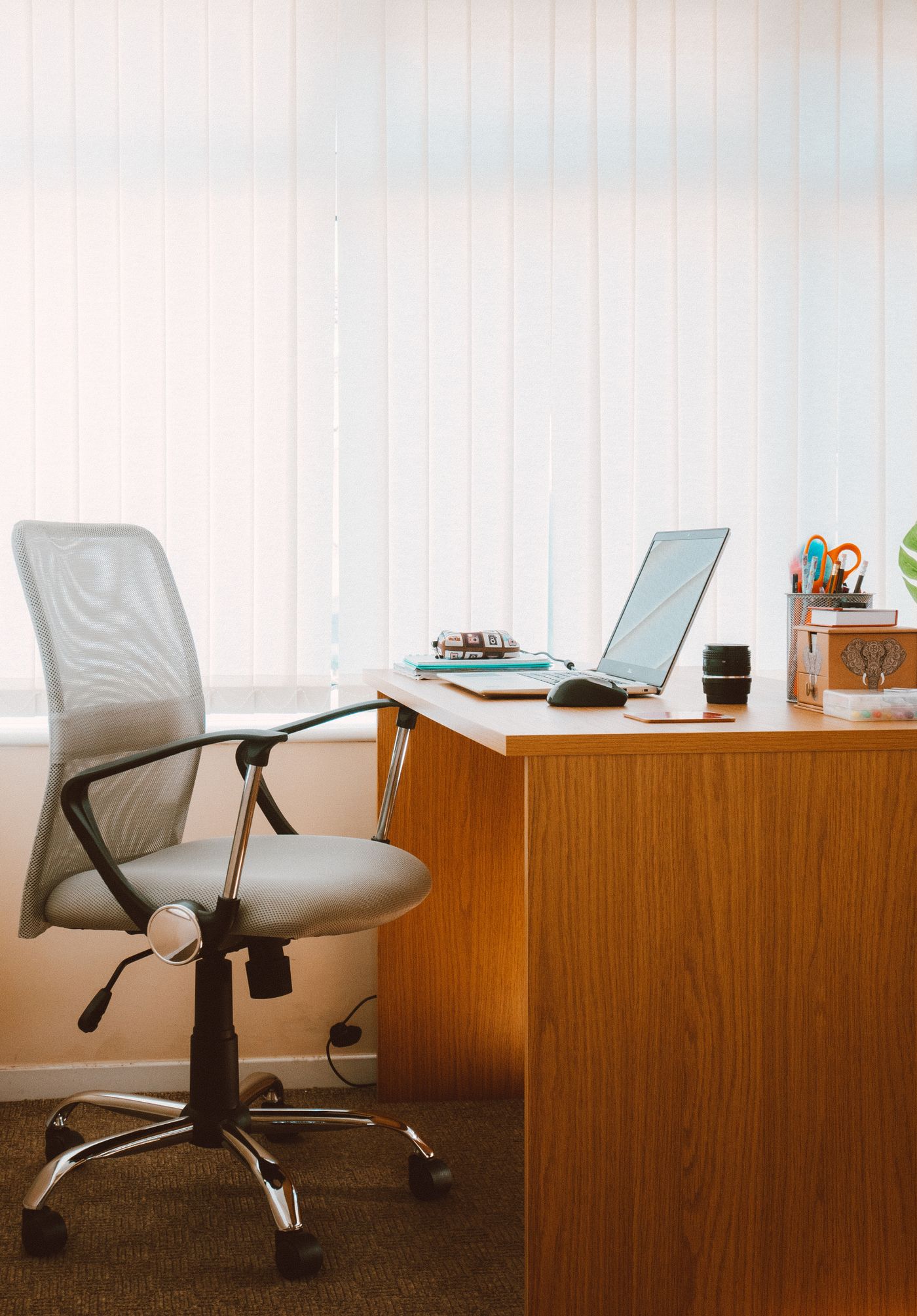
Well-chosen accessories can make an existing laptop or desktop setup more versatile. The objective is to solve practical problems rather than add unnecessary complexity.
USB Hubs and Adapters
Expand supported connections for displays, storage, peripherals, and other devices while checking exact port capabilities.
Wireless Keyboards and Mice
Reduce cable clutter and provide flexible placement, with comfort and responsiveness varying by model.
Laptop Stands
Raise a laptop screen for more comfortable viewing; use a separate keyboard and mouse when necessary for suitable positioning.
Charging Accessories
Keep compatible phones and other devices ready while respecting charging power requirements and cable specifications.
Create a More Comfortable Visual Environment
Lighting affects how clearly you can see your work and how comfortable a workspace feels. A balanced combination of natural and artificial light can help reduce distracting glare and support different tasks throughout the day.
Adjustable desk lamps and compatible smart lighting products can offer flexibility, but thoughtful placement is often more important than adding advanced features.
Position screens to minimize direct reflections and avoid having intense light sources shine directly into your eyes.
Use an adjustable light to illuminate documents, keyboards, or other work materials when needed.
Choose lighting levels that suit the task and surrounding environment rather than relying on one setting all day.
Compatible smart lights may offer convenient schedules, dimming, and personalized scenes.


Organize Your Space Around Real Tasks
A clean desk can make it easier to locate essential tools and create room for focused work. Organization does not mean removing every personal item. It means keeping the things you need accessible while reducing unnecessary obstacles.
Define Your Main Work Zone
Reserve the most accessible part of the desk for your primary computer, input devices, and current task.
Manage Cables Carefully
Use suitable clips or organizers to route cables without sharp bends, strain, blocked ventilation, or unsafe electrical arrangements.
Keep Essentials Within Reach
Place frequently used accessories nearby and move less-used items into drawers or dedicated storage.
Maintain a Simple Reset Routine
Spend a few minutes clearing the surface and preparing the next day's essentials when your schedule permits.
A Workspace That Supports Focus
Productivity depends on more than equipment. The way you organize attention, communication, and breaks can influence how effectively your workspace supports your daily responsibilities.
Reduce Unnecessary Notifications
Use available focus settings to limit interruptions during tasks that require sustained attention, while preserving essential alerts.
Group Similar Tasks
Organizing related activities can reduce repeated transitions between different applications, documents, and work modes.
Build in Natural Breaks
Take opportunities to move, rest your eyes, and change posture during prolonged periods of desk work.
Build a Reliable Digital Workflow
A smart workspace should help different devices work together without creating unnecessary complexity. Reliable connectivity and clear digital organization can be just as important as the physical desk.
Check Port Capabilities
USB-C connectors can support different charging, data, and video features. Confirm exact specifications before selecting hubs or cables.
Keep Devices Updated
Install supported software and security updates for computers, wireless peripherals, and connected accessories.
Organize Digital Files
Use consistent folder names, sensible backups, and clear document organization to reduce time spent searching.
Protect Your Connections
Use secure networks, strong passwords, and appropriate account protections when working with sensitive information.

Build Your Workspace in Five Steps
Start with your existing space and improve it gradually. This approach helps you identify genuine needs before investing in additional equipment.
Evaluate Your Current Setup
Identify what feels uncomfortable, what creates distractions, and which tasks are unnecessarily difficult.
Adjust the Essentials
Start with seating, screen placement, keyboard positioning, lighting, and frequently used tools.
Improve Connectivity
Choose compatible adapters, hubs, charging equipment, or wireless accessories only where they solve a specific problem.
Organize Physical and Digital Space
Reduce unnecessary clutter, establish convenient storage, and organize important files and applications.
Test and Refine
Use the setup for several work sessions, then adjust it based on comfort, convenience, and actual task requirements.

Your Smarter Workspace Checklist
Use this checklist to evaluate whether your workspace is comfortable, organized, and ready for the tasks you perform most often.
My screen is positioned for comfortable viewing without unnecessary neck strain.
My keyboard, mouse, and frequently used tools are easy to reach.
My seating and desk arrangement support comfortable posture changes.
My lighting provides suitable visibility without distracting glare.
My cables and charging accessories are organized and used safely.
My connected devices and accessories are compatible and updated.
I have a practical way to manage interruptions, movement breaks, and daily organization.
Smart Workspace FAQs
Answers to common questions about desk setup, ergonomics, lighting, connectivity, and practical workspace improvements.
What is a smart workspace?
How can I improve a small workspace?
Is a laptop stand useful for desk work?
Are wireless keyboards and mice better than wired ones?
Can every USB-C hub connect an external monitor?
How can I reduce eye discomfort during computer work?
Do I need smart lighting for a productive desk?
What should I upgrade first?
A Better Workspace Starts With Better Choices
A smarter workspace is the result of intentional design, not simply a collection of the latest electronic products.
Comfortable screen positioning, thoughtful lighting, reliable connectivity, and organized surfaces can help create an environment that supports both focus and everyday convenience.
Accessories such as laptop stands, wireless keyboards, mice, USB hubs, and charging solutions become valuable when they address specific needs and integrate smoothly with your existing setup.
By making improvements gradually and evaluating how each change affects your daily experience, you can create a workspace that feels more functional, comfortable, and personal.


